Use Interaction and Dexterity enhancements
You can set custom controls for receiving calls or add an assistant menu to your screen to help you access different functions.
From Settings, swipe to and tap Accessibility. Tap Interaction and dexterity for the available controls:
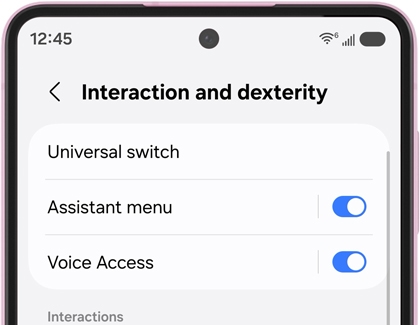
- Universal switch: Allows you to control your device with custom switches. Connect accessories for navigating, use facial detections with your camera, and set different options for tapping on the screen.
- Assistant menu: Displays a fixed menu with common controls and gestures like navigation buttons, swiping, an on-screen touchpad, and more. You can edit the menu to include your frequently used buttons.
- Voice Access: Control your device with just your voice. You can use voice commands to launch apps, select buttons, swipe on the screen, and type.
Note: This feature is currently available in English, French, Italian, German, and Spanish.
- Answering and ending calls: Choose how you would like to answer and end phone calls. For example, you can have a caller's name read aloud to you and press the Volume up button to answer.
Note: This setting may not be available on tablets.
- Interaction control: Keep the device focused on a single app by blocking interactions from other apps and areas of the screen, like the navigation bar buttons and the keyboard.
- Time to take action: Choose how long temporary system notifications, pop-ups, and controls (like the volume controller) stay visible on your screen before automatically disappearing.
- Touch and hold delay: Set the time threshold for when a continuous touch is registered as a touch and hold on your screen. You can customize the time as well.
- Tap duration: Set the amount of time the screen is touched until it is recognized as a tap.
- Ignore repeated touches: Turn this on so your initial tap is recognized and taps that follow are disregarded. A time limit can be set for how long the extra screen taps are ignored.
Note: When this feature is turned on, a blue circle will appear to indicate where you are touching the screen.
- Dwell action: When using a physical mouse or trackpad, turn this on to set the mouse to automatically perform an action whenever the pointer stops moving.
- Corner actions: When a physical mouse or trackpad is connected, turn this on to assign specific actions when you move the cursor into a screen corner or keep it stationary for a set amount of time.
- Sticky keys: If you have a USB keyboard attached, modifiers like Shift and Ctrl will stay pressed until another key is pressed so you can enter keyboard shortcuts one at a time.
- Slow keys: Choose a time delay for how long a key should be held until it is recognized as a key press.
- Bounce keys: Set a time limit for waiting until a key is pressed a second time.
- Mouse keys: When this feature is turned on, it enables you to use keys on a connected keyboard for mouse interactions
- Pointer size and color: Adjust the size and color of the on-screen mouse cursor when external hardware is connected to your device.



